
Setup guide
Set up VIP Studios in 10 minutes
From adding the bot to your first ticket, giveaway, and level-up, step by step.
Add the bot to your server
Click Add to Discord, choose your server, and keep the suggested permissions. VIP Studios needs them to create ticket channels, manage roles, and moderate.
Sign in to the dashboard
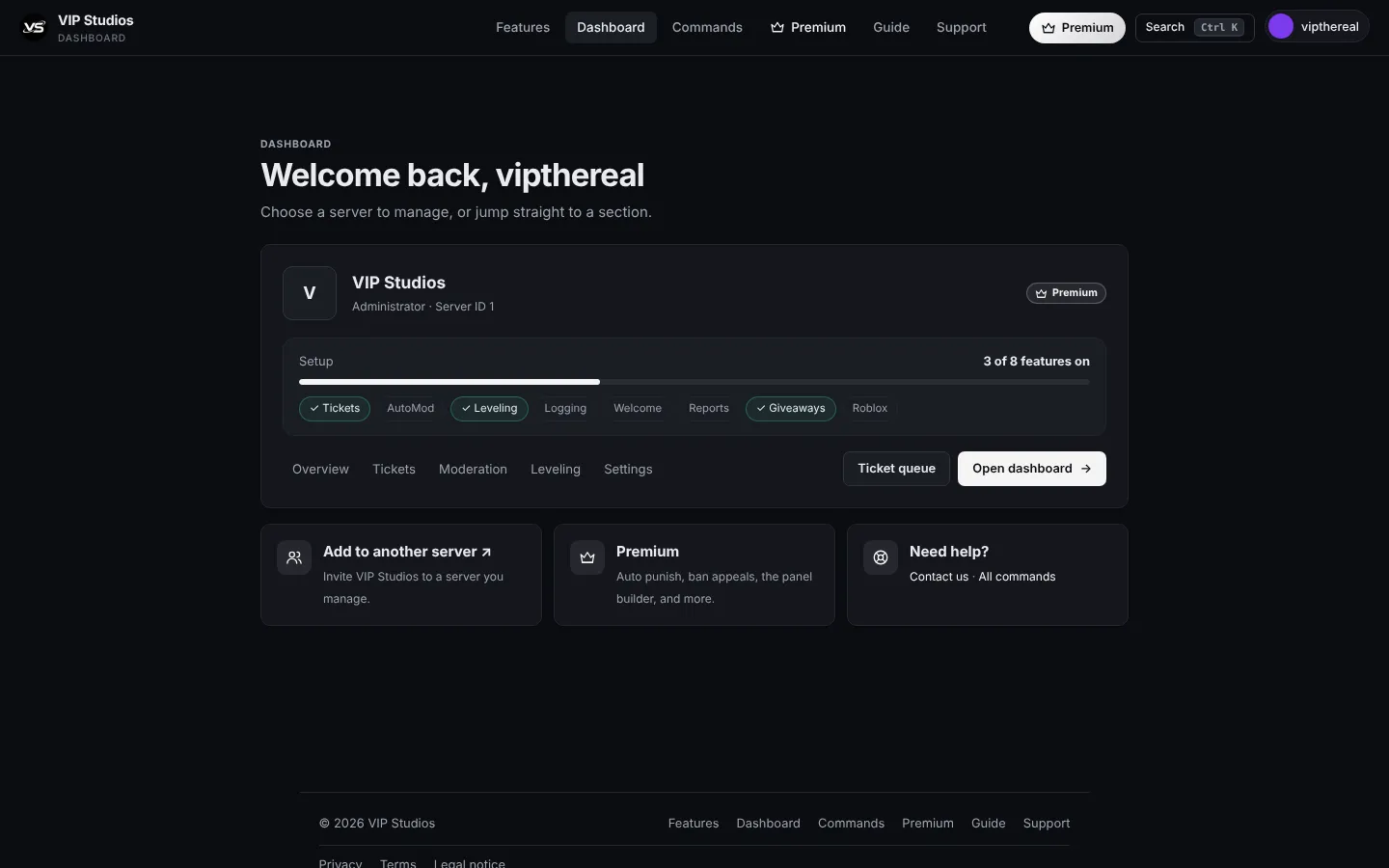
Click Sign in with Discord. You'll see every server where you are an administrator and the bot is installed. Pick one to open its dashboard.
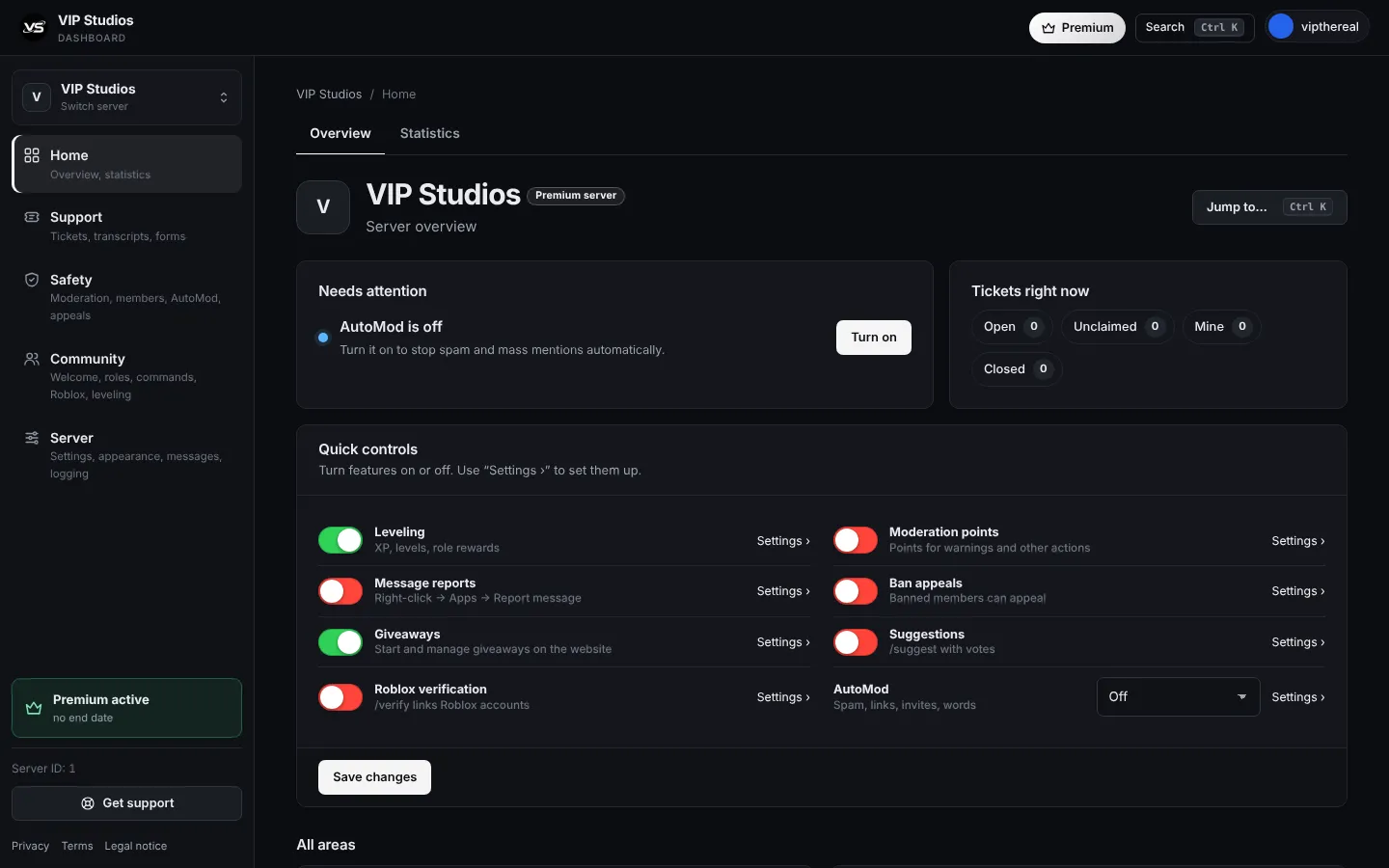
Start on the Home page
Home shows what still needs attention and Quick controls to turn features on or off. Every feature has a Settings › link next to it.
Set up tickets
- Go to Support → Tickets.
- Choose the staff role, the ticket category, and a default transcript channel, then save.
- Post a panel: run
/ticket_panelin the channel where members should open tickets, or design one with the panel builder (Premium).
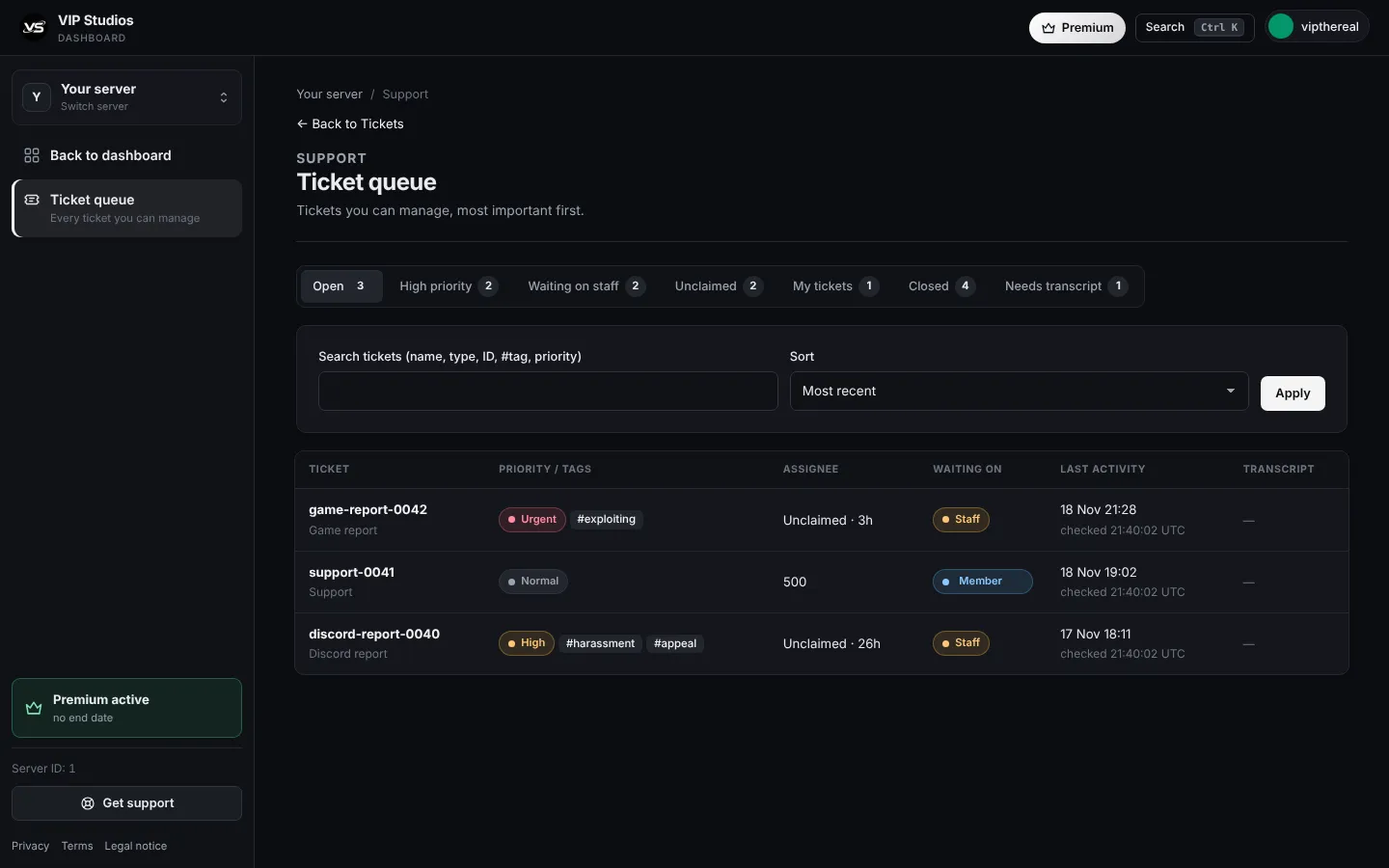
Open tickets show up in the ticket queue, where staff can claim, prioritize, and label them.
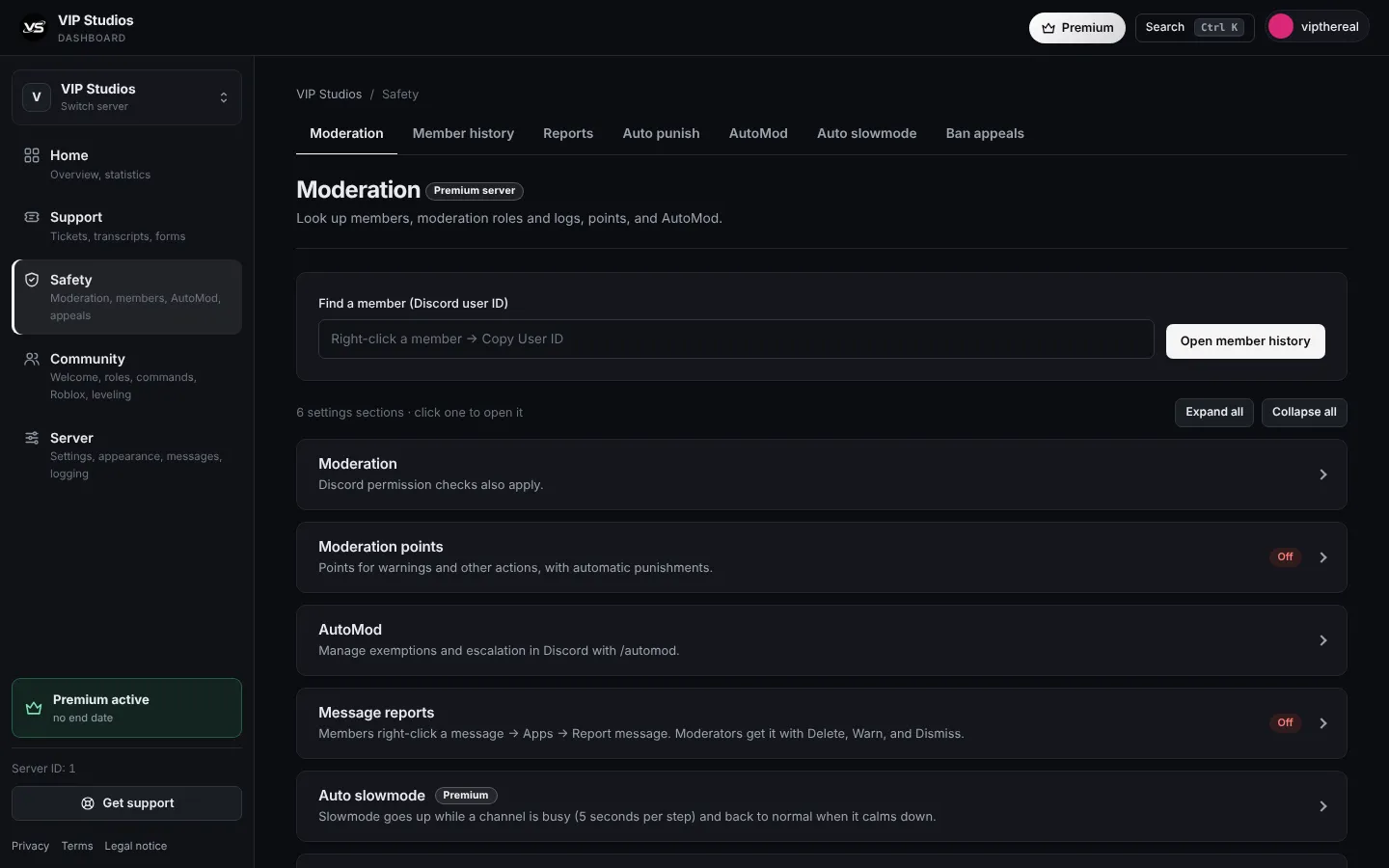
Turn on moderation and AutoMod
- Go to Safety → Moderation and pick a private moderation log channel.
- Open AutoMod and choose Alert only to test, or Remove messages to enforce.
- Optional: message reports, auto slowmode, ban appeals, and auto punish.
Welcome members and add leveling
- Community → Welcome & auto reply: pick a welcome channel and write your message (there's a live preview).
- Role menus: let members pick roles with buttons or reactions.
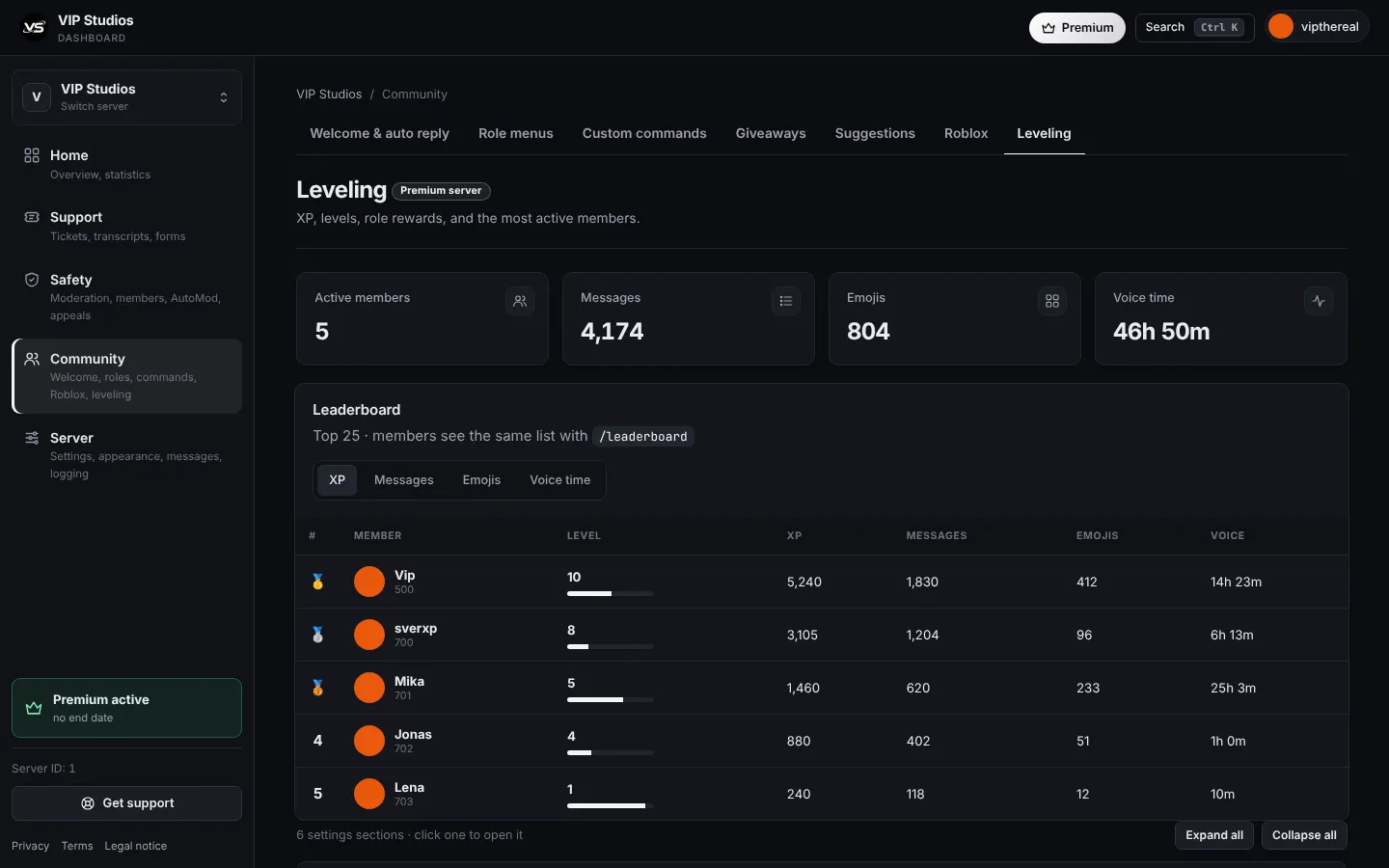
- Leveling: turn it on and add role rewards for levels.
Run a giveaway
- Turn giveaways on in Quick controls.
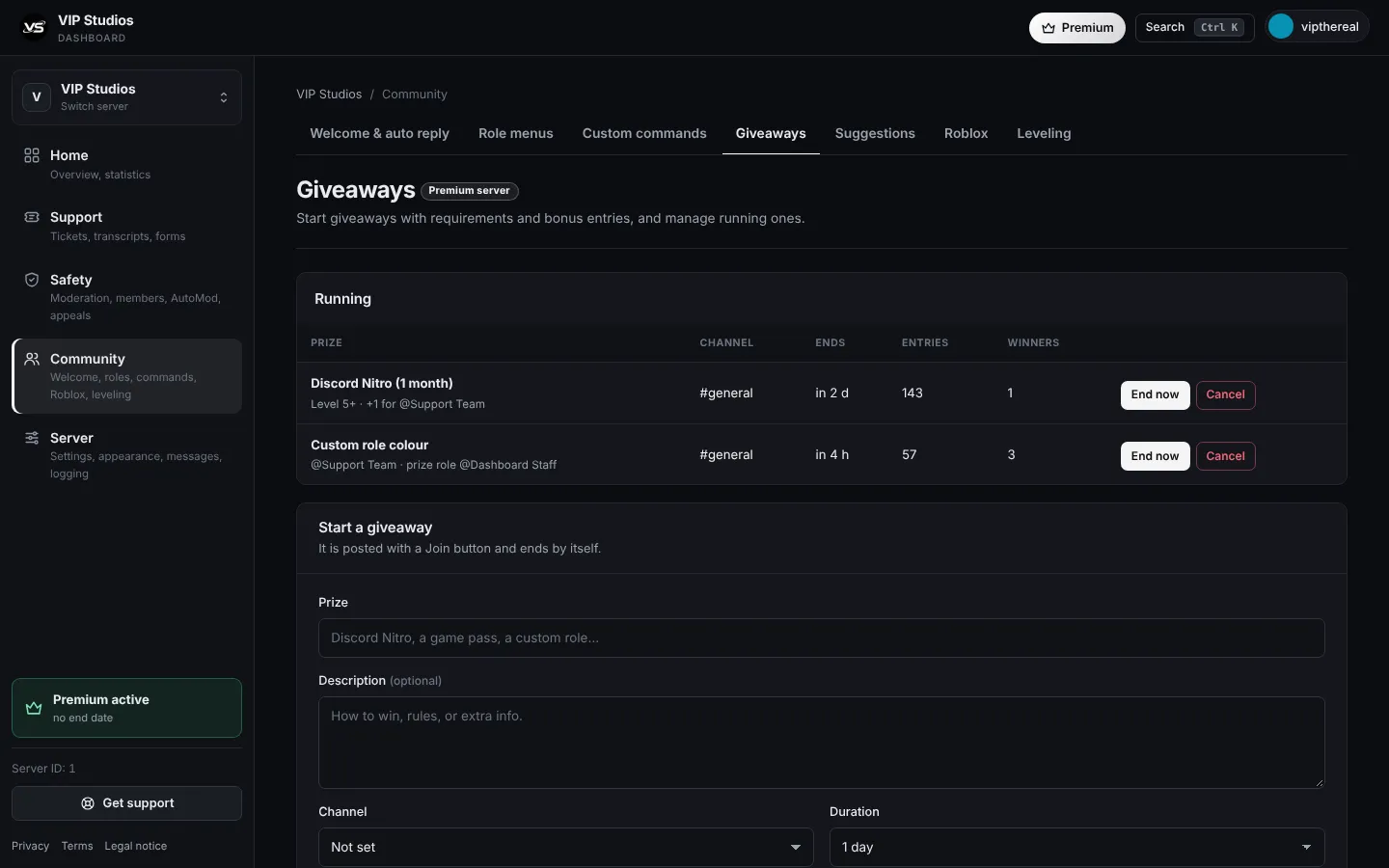
- Go to Community → Giveaways, enter the prize, channel, and duration.
- Optional: requirements (role, level, account age), bonus entries for a role, and a prize role for winners.
You can also use /giveaway start in Discord.
Make the bot yours
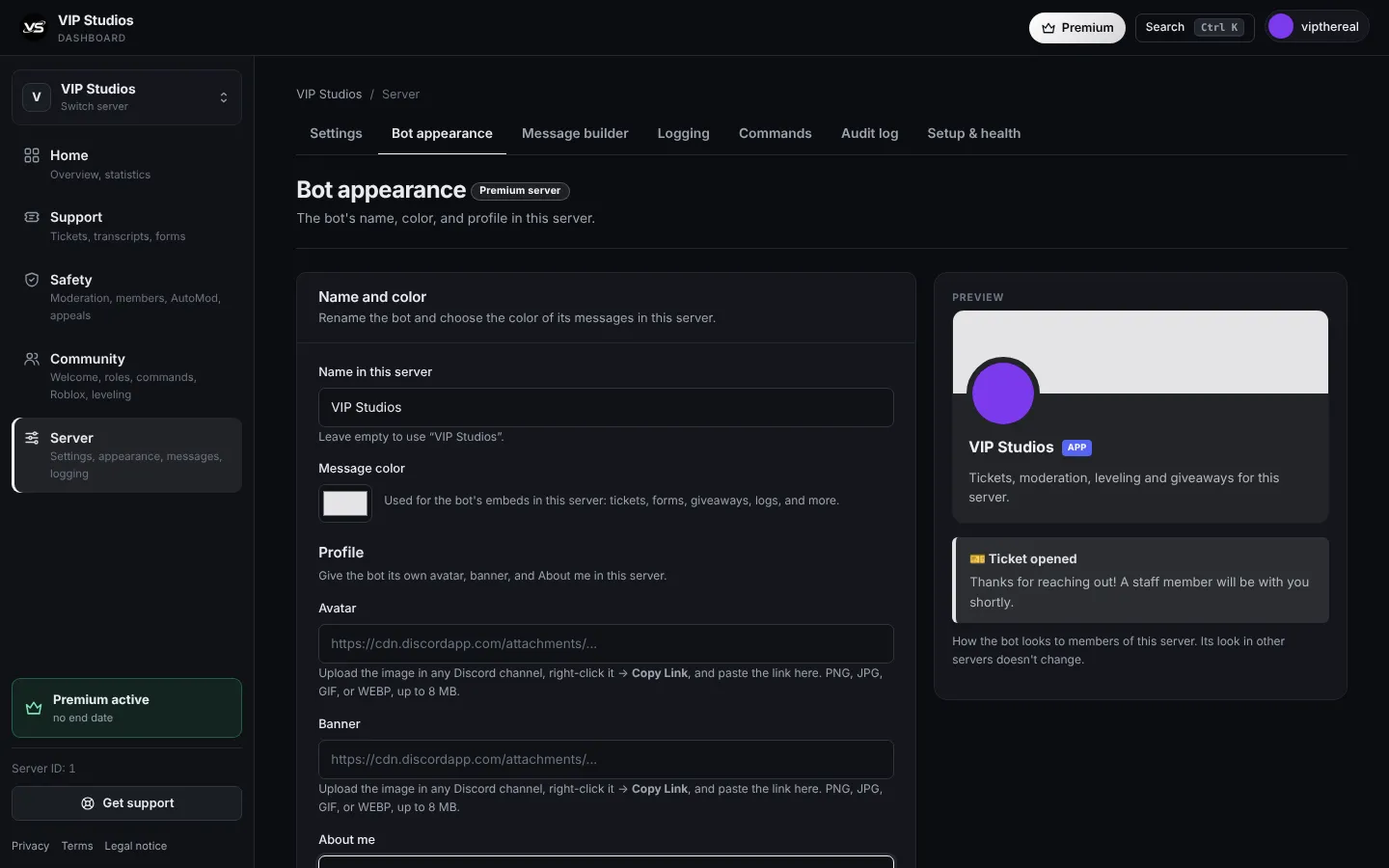
In Server → Bot appearance, rename the bot and choose the color of its messages in your server. With Premium you can also give it its own avatar, banner, and About me.
Check that everything works
Run /setup check in Discord, or open Server → Setup & health. Both list missing permissions and settings. Stuck? Visit the Support page.